How to Manage Teams in lemwarm: Create, Archive, and Delete
January 30, 2025
|5 min read
This guide shows you how to add new teams, archive inactive ones, restore archived teams, and prepare a team for deletion. You’ll follow the full workflow so you can keep your workspace organized without losing important billing or invoicing records.
Learning Objective
By the end of this tutorial, you’ll know how to create and manage teams in lemwarm, archive and unarchive them when needed, and prepare a team for permanent deletion safely.
Why This Matters
If you manage multiple teams, your workspace can become difficult to navigate. A clear team-management workflow helps you stay organized, keep historical billing data accessible, and avoid deleting a team before you’ve saved the information you still need.
Prerequisites
- You should already have access to a Supervisor user in lemwarm.
- You should already know how to access your profile menu and switch between teams.
- You should already have admin permissions for any team you want to manage.
Core Lesson — Step-by-Step Workflow
Phase 1: Add more teams
Use this phase when you need to manage another workspace from your Supervisor account. The right approach depends on whether the team already exists.
Option A: The account already exists
- Ask the team owner to invite your Supervisor user to their team.
- Make sure they assign your Supervisor user an admin role. You need admin access to manage billing and team settings.
- Accept the invitation. Once accepted, the team will appear in your workspace so you can manage it alongside your other teams.
This is the fastest option because the workspace is already set up. You only need the correct access level to start managing it.
Option B: The account does not exist yet
- Log in with your Supervisor user and open your profile menu.
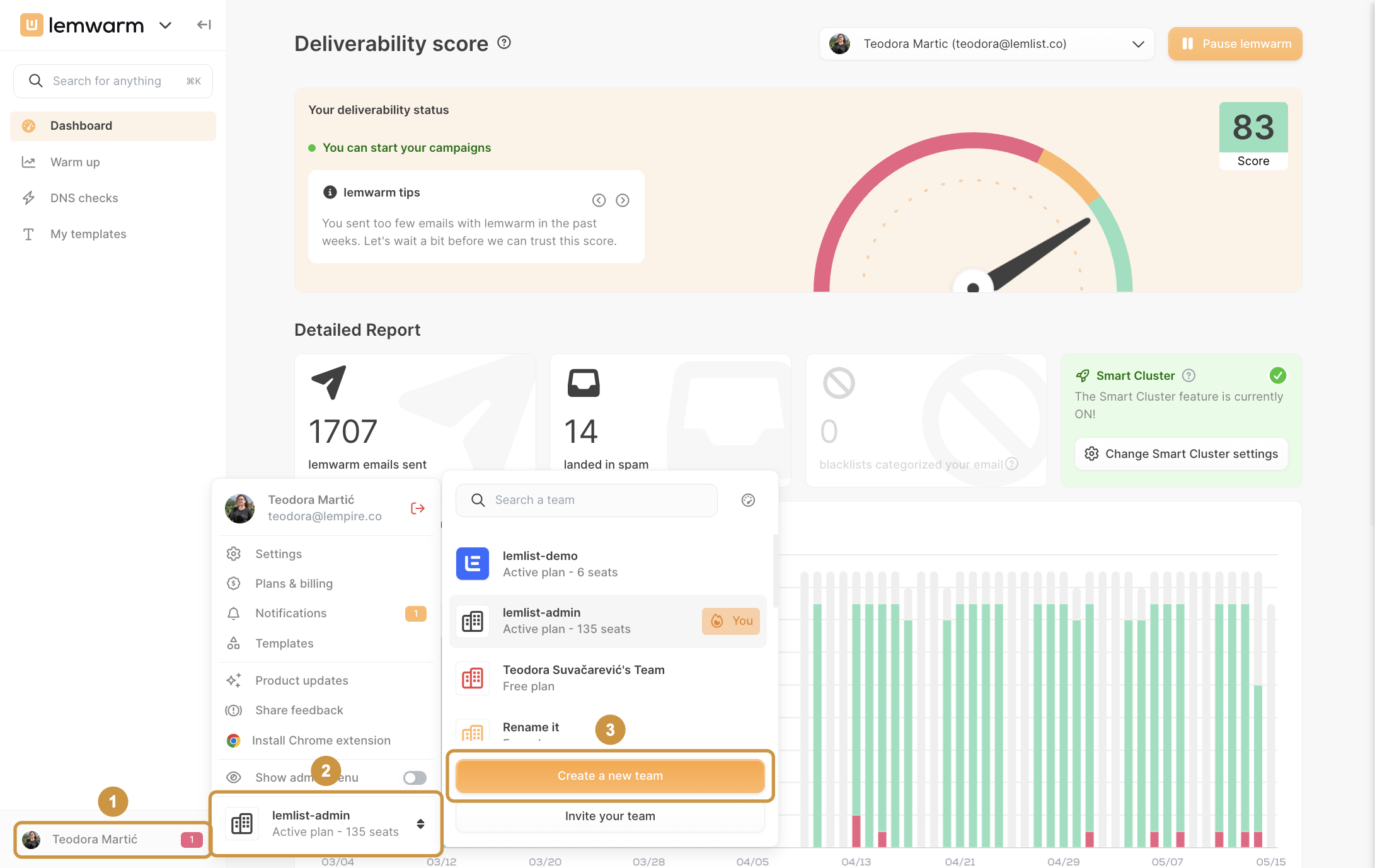
- If needed, enable the admin menu, then open the team switcher and click Create a new team. This creates a separate workspace for the new team, which keeps settings, billing, and activity isolated from your other teams.
Phase 2: Archive teams you no longer actively manage
Archiving is the best choice when a team is inactive but you still need to keep its records. It helps you clean up your active workspace without losing billing history or invoices.
Why archive instead of delete?
- Cleaner workspace: only active teams stay visible in your main workflow.
- Data preservation: billing details and invoices remain available.
- Safer workflow: you reduce the risk of permanent data loss.
How to archive a team
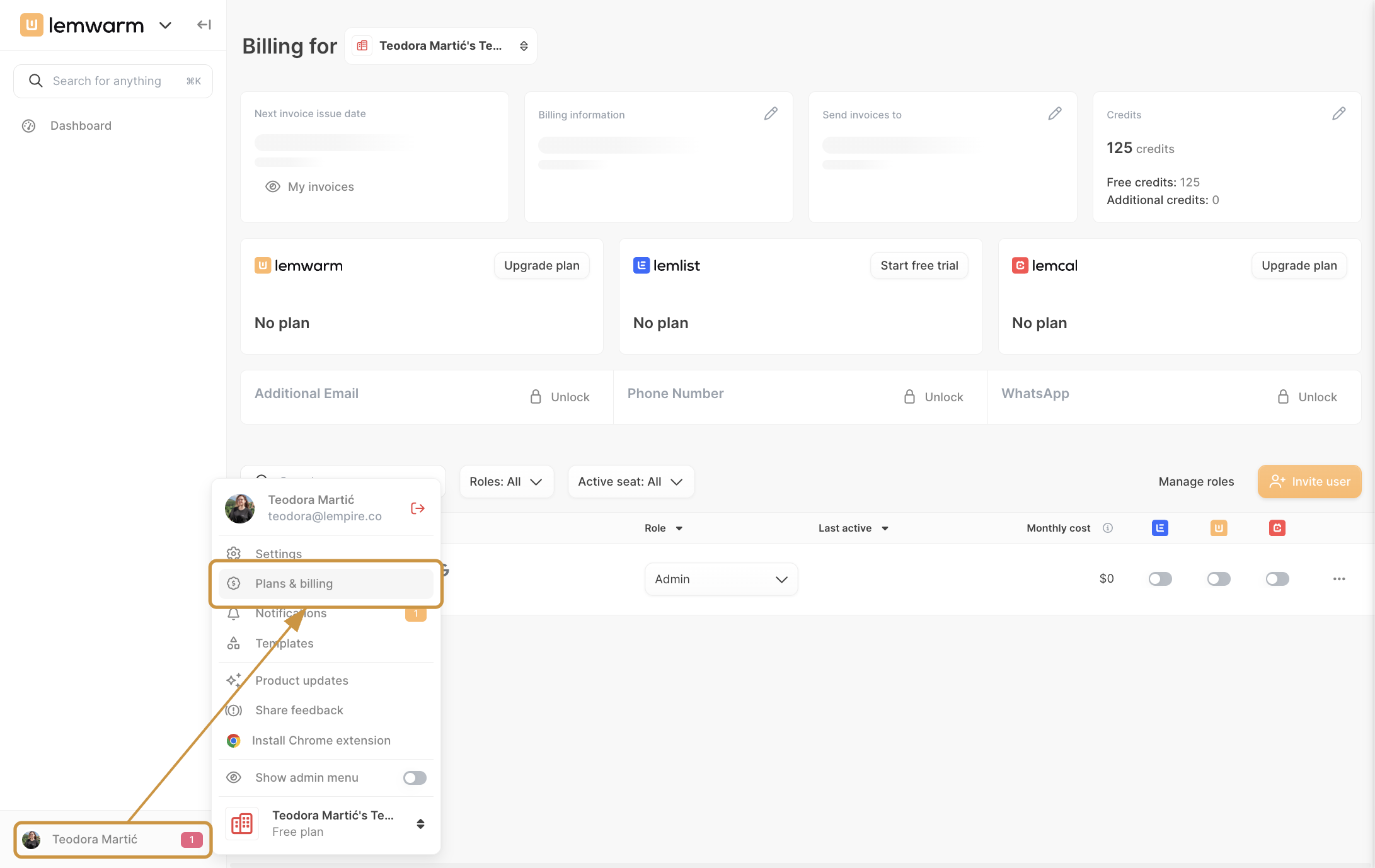
- Open your profile menu and go to Plans & billing. This is where team billing controls and team-management actions are available.
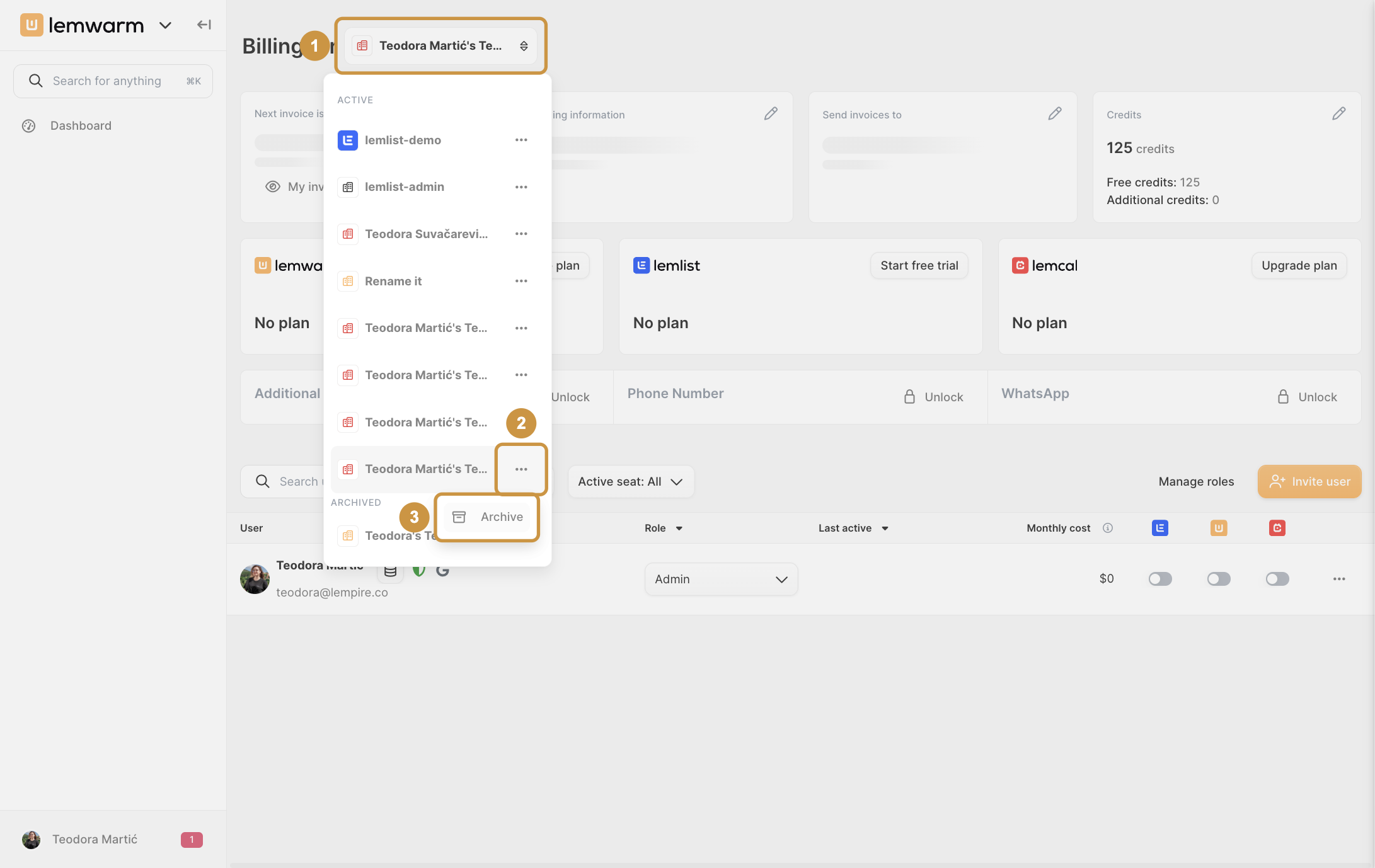
2. On the billing page, open the team selector, find the team you want to archive, click the three-dot menu, and choose Archive. This moves the team out of your active list while keeping its records available.
How to unarchive a team
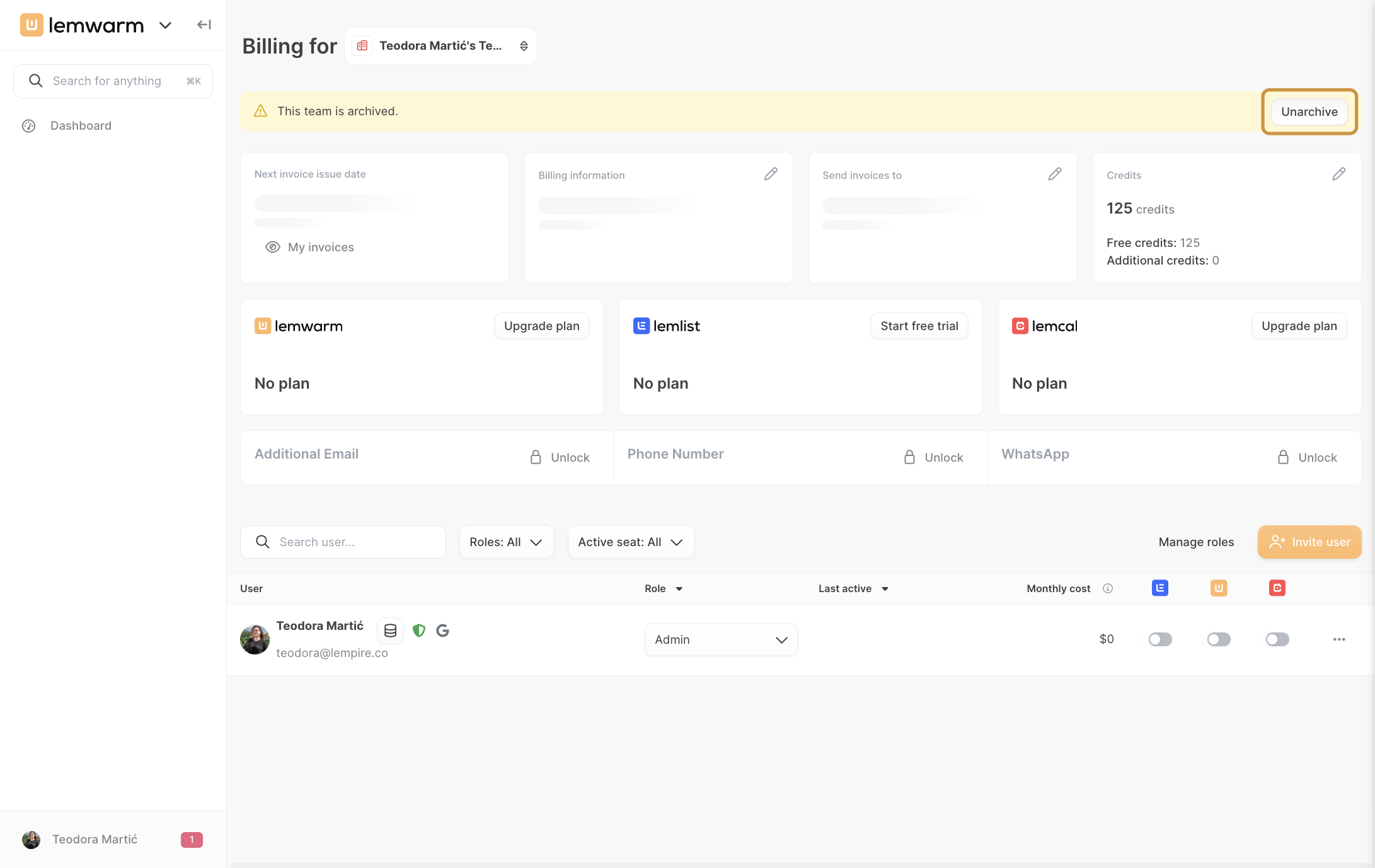
Open the archived team from the billing area and click Unarchive. This restores the team to your active workflow so you can manage it again.
Phase 3: Prepare a team for deletion
Deleting a team is permanent, so only use this option when you’re sure the workspace is no longer needed. Before requesting deletion, complete the steps below to protect your records and avoid billing issues.
- Cancel the plan.
Go to Plans & billing and make sure the subscription for that team is canceled first. This prevents future charges and closes the billing cycle correctly. - Download invoices.
Save all invoices you may need for bookkeeping, finance, or reporting. Once the team is deleted, retrieving them may be difficult or impossible. - Contact support.
Team deletion must be handled by our support team. Once the plan is canceled and invoices are downloaded, contact support and request deletion.
Practical Application
Here’s a simple way to choose the right action for each team:
- Create a team when you’re setting up a brand-new workspace.
- Join an existing team when the workspace already exists and the owner can invite your Supervisor user.
- Archive a team when it becomes inactive but you still need access to historical records.
- Delete a team only after the account is fully closed, the plan is canceled, and invoices have been saved.
Example: If a team pauses activity for a few months, archiving is usually the best option. It keeps your active workspace clean while preserving the team so you can unarchive it later instead of rebuilding everything from scratch.
Troubleshooting & Pitfalls
Issue: I can’t see the option to create a new team
- Root cause: You may not be logged in as the correct Supervisor user, or the admin menu may not be enabled.
- Fix:
- Log in with your Supervisor account.
- Open your profile menu.
- Enable the admin menu if available, then check the team switcher again.
Issue: The archived team disappeared
- Root cause: This is expected behavior after archiving.
- Fix:
- Go to Plans & billing.
- Open the team selector.
- Look for the team in the archived section and unarchive it if needed.
Issue: I want to delete a team, but I don’t see a delete button
- Root cause: Team deletion is not self-serve.
- Fix:
- Cancel the team’s plan first.
- Download all invoices.
- Contact support to request deletion.
Issue: I archived a team by mistake
- Root cause: The archive action was applied from the team options menu.
- Fix:
- Open the archived team from the billing area.
- Click Unarchive.
- Confirm the team is back in your active team list.