How to invite team members and manage roles in lemwarm
January 30, 2025
|4 min read
By the end of this tutorial, you'll know how to invite new users to your lemwarm team, choose the right seat type and role for each person, and update roles for existing team members — including legacy extern users.
Why This Matters
Roles control who can manage billing, access team settings, and use lemwarm features. Assigning the right role from the start prevents accidental changes, protects sensitive billing information, and keeps your workspace organized as your team grows. lemwarm now supports two active roles — Admin and Member — making team management simpler and more predictable.
Who This Is For
This guide is for Admins who set up team structures and manage user permissions. If you're an agency owner managing multiple client accounts or an operations manager controlling access levels, this is for you. If you don't manage user access, this article may not apply to you.
Prerequisites
- You have an active lemwarm subscription
- You are assigned the Admin role on the team you want to manage
- You understand the difference between paid seats and guest seats (see Plans & Billing overview)
Understanding Team Roles
Before inviting anyone, make sure you know which role fits each person:
Role | Access | Seat required |
|---|---|---|
Admin | Full access: billing, team management, all features. Can invite, remove, and change roles. | Paid seat (or guest seat) |
Member | Full access to campaigns, reports, and settings — but cannot access billing. | Paid seat (or guest seat) |
Extern (legacy) | Still exists for users added in the past, but cannot be invited to new teams. | — |

Guest seats: Email Pro and Multichannel Expert plans include up to 5 guest seats. Enterprise plans include unlimited guest seats. Guests can access lemwarm but cannot send campaigns.
Step 1: Open Plans & Billing
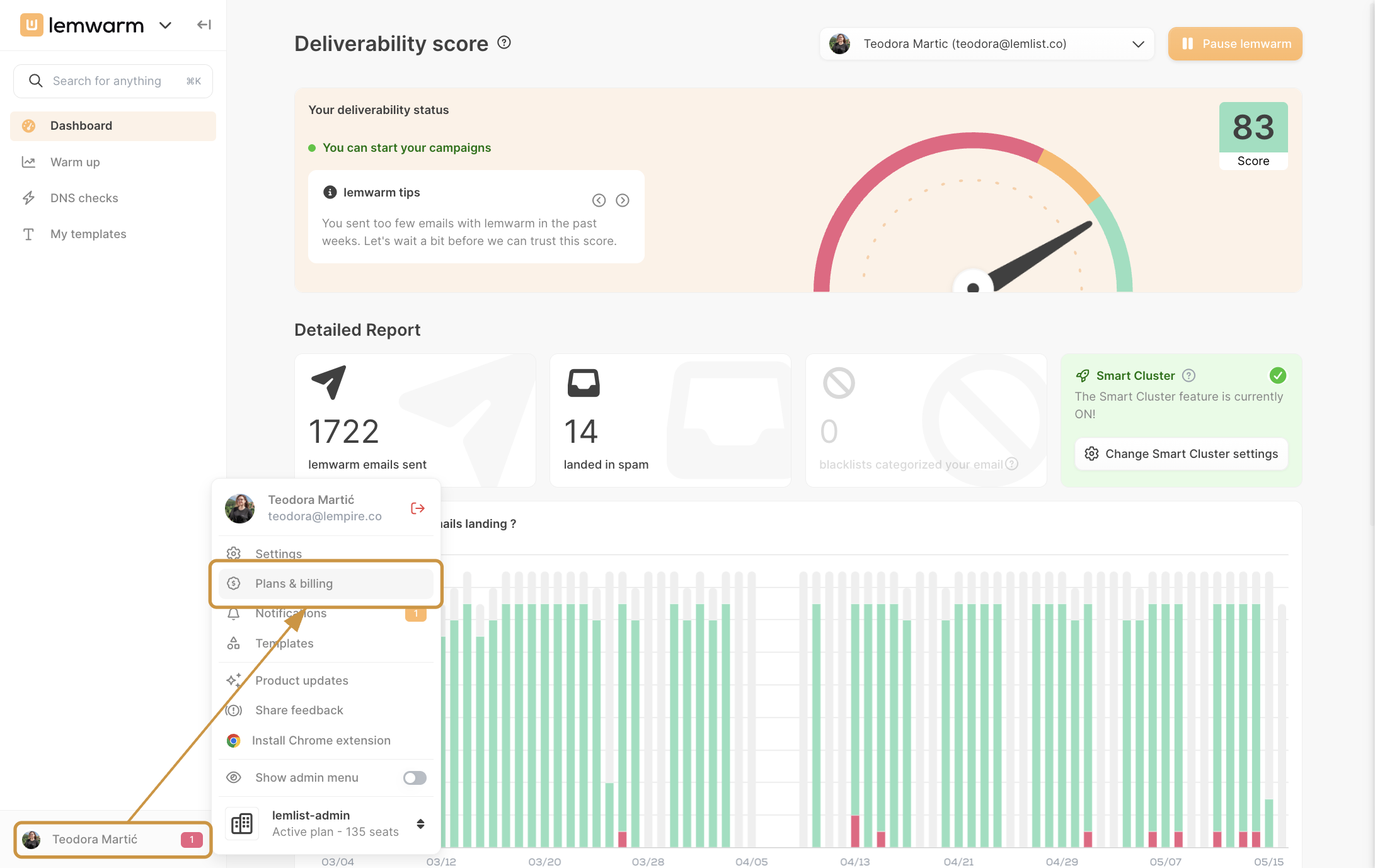
Click your profile icon in the bottom-left corner of lemwarm to open the profile menu, then click Plans & billing.
Step 2: Invite a New User
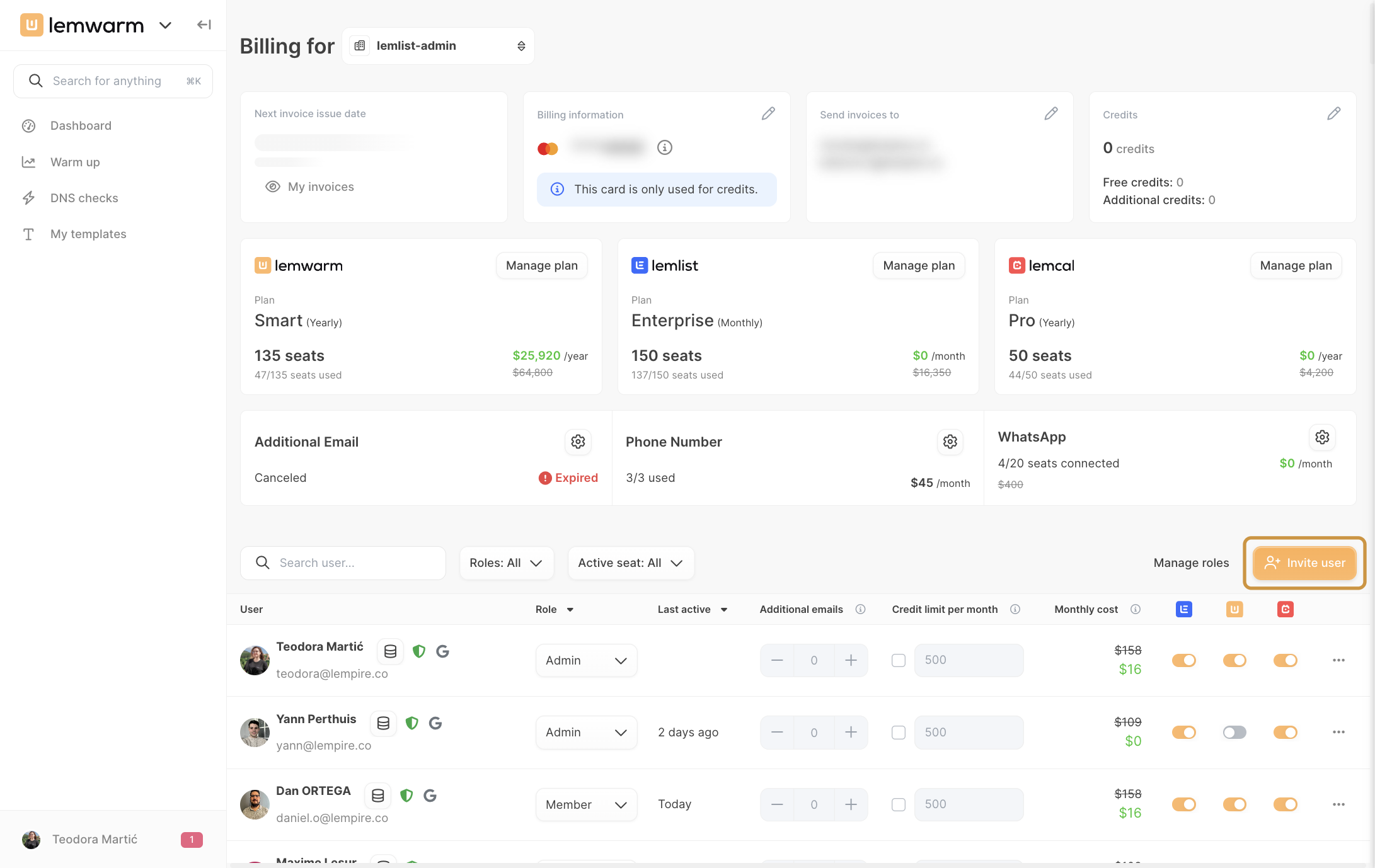
On the Billing page, click Invite user in the top-right corner of the user list.
In the Invite co-workers to your team modal:
- Enter the user's email address.
- Choose how they should be added:
- Add as paying seats — the user gets full lemwarm access and counts toward your paid seat limit.
- Add as guest — the user can access lemwarm but cannot send campaigns, and does not use a paid seat.
- Click Invite. The user receives an invitation email.
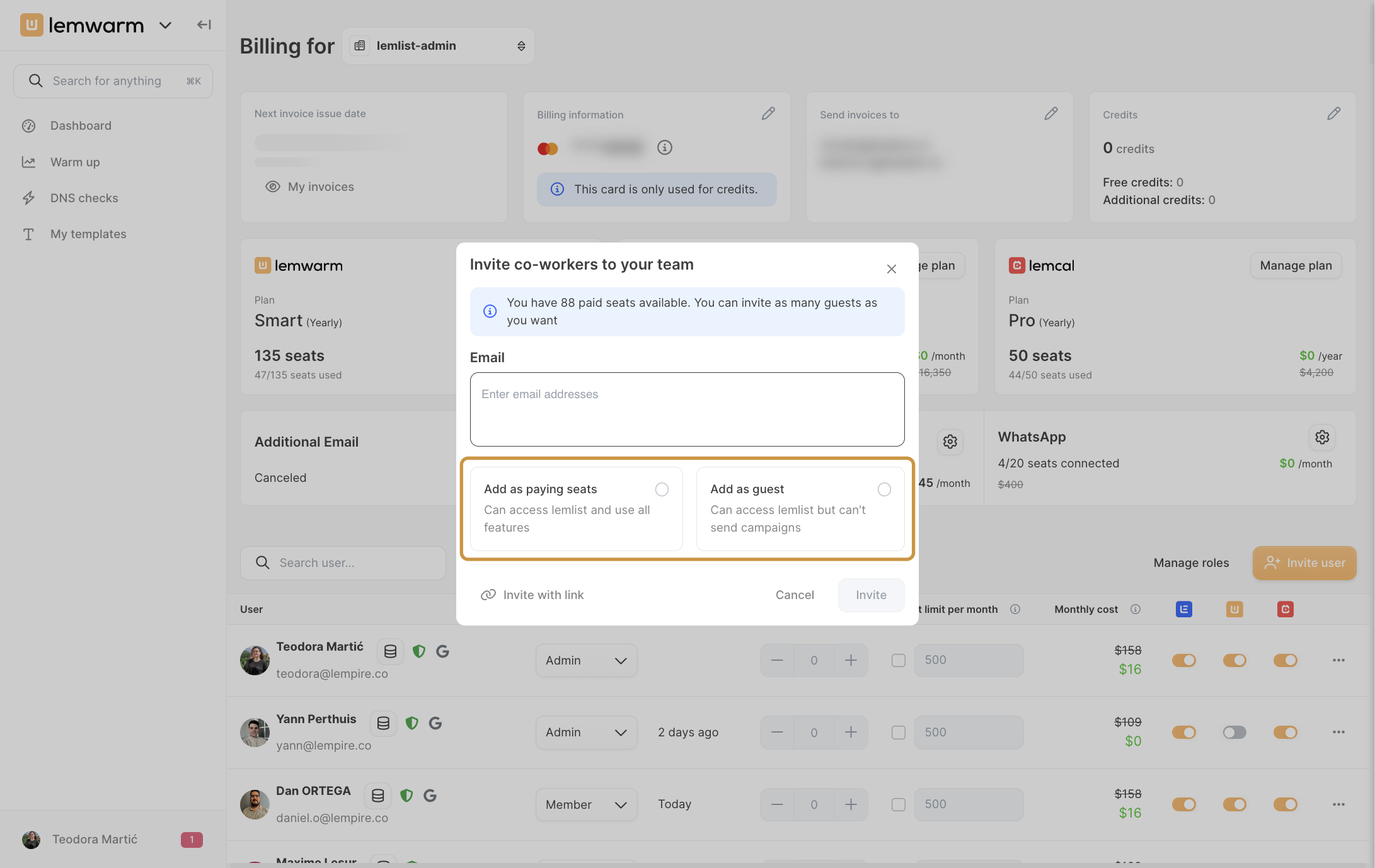
Prefer a shareable link? Click Invite with link at the bottom of the modal to generate an invitation link you can share directly — no email needed.
Step 3: Assign or Change a User's Role
Once a user is on your team, you can update their role at any time from the Billing page.
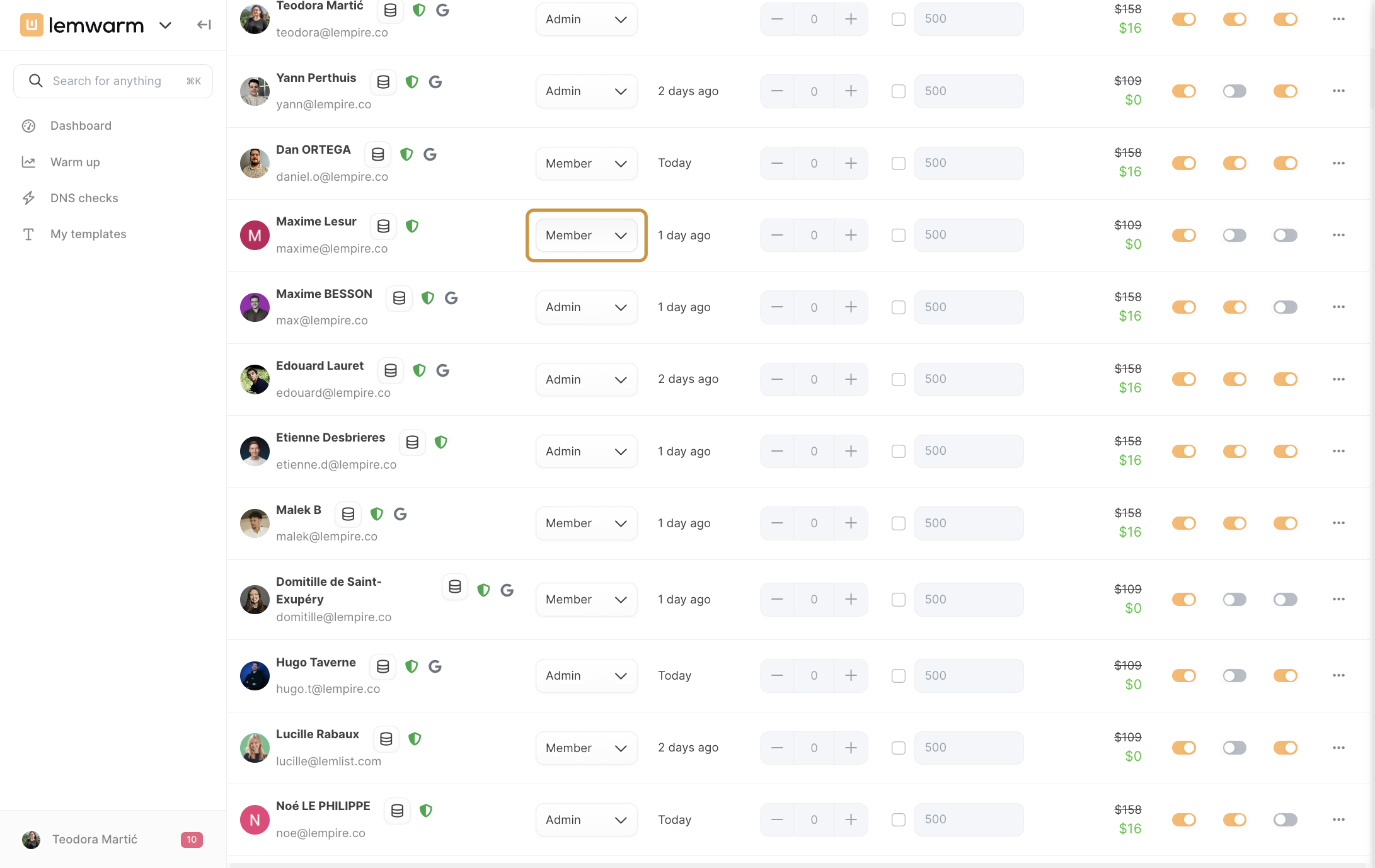
- Find the user in the team list on the Billing page.
- Click the role dropdown next to their name.
- Select Admin or Member.
The change takes effect immediately.
⚠ Extern users: You can no longer invite new extern users. However, if your team has existing extern users from before this change, you can update their role to Member. To do this, temporarily remove them from the team, then re-invite them as a Member.
How You'll Know It Worked
- ✅ The user appears in your team list with the correct role
- ✅ The user received an invitation email or joined via the invite link
- ✅ Admins can access billing and all team settings
- ✅ Members can access campaigns and reports but not billing
- ✅ Your seat count updated correctly for paid seats
- ✅ Existing extern users retain their access until you manually change their role
Troubleshooting
User can't access billing
- Cause: The user is assigned the Member role.
- Fix: Go to Plans & billing, find the user, and change their role to Admin.
Can't invite an Extern user
- Cause: The extern invitation flow has been removed for new users.
- Fix: Invite the user as a normal team member and assign them the Admin or Member role as appropriate.
Seat count didn't update after adding a user
- Cause: The user was invited as a guest seat.
- Fix: Guest seats don't consume paid seats by design. If this user needs full access for day-to-day work, remove them and re-invite them as a paying seat.
User was invited but can't log in
- Cause: The user hasn't accepted the invitation email or used the invite link yet.
- Fix: Go to Plans & billing and send a new invite, or generate a fresh invite link to share with them.
Need to update an existing extern user
- Cause: The user was added before the extern invitation flow was removed.
- Fix: Go to Plans & billing, temporarily remove the user, then re-invite them and assign the Member role.